

Creating an inspiring space for young children has never been easier! Use the free myKaplan Classroom FloorPlanner to design the classroom perfect for your needs and easily add those items to your shopping cart or share your floorplan with a Kaplan representative. We know that a well-designed classroom enhances educational experiences, and this tool takes the guesswork out of designing and furnishing your early childhood space. Want to learn more before getting started? Read this short article that explains the benefits and how-to's of the myKaplan FloorPlanner tool.

Enter the dimensions of your classroom and drag, drop, and rearrange the products until your design is complete.

Fill your classroom with furniture and products from the Kaplan catalog, conveniently organized by age group and type.

Choose from dozens of wall, ceiling, and floor coverings. Drag windows and doors and place them anywhere on your walls. Place accessories such as plants, lamps, and wall clocks.

Share your design with others by sending them a link. Generate an embed code if you want to share on a website or blog.
Watch the FloorPlanner in action in this short video. Discover how our classroom designer can inspire your space.
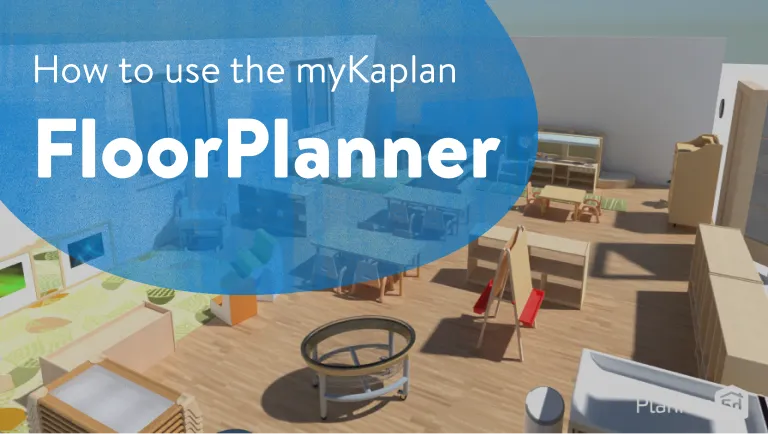
Get started by customizing one of our saved sample classroom floorplans below or create your own 2D and 3D renderings for a realistic view of what your classroom will look like. When you're ready to bring your classroom to life, our Sales Support team is here to help!
